Key takeaways
A cinematic app mockup video comes from slow, close shots that each land on one moment of the screen recording, with blur pointing the eye and the phone kept almost whole.
- One moment, one shot. Cut the recording wherever something loads or gets tapped, and give each of those moments its own camera move.
- Go slow after the opening. One or two quick shots hook people; the rest need five to nine seconds so they can read the screen.
- Use blur to point, not to decorate. Lens for depth, radial to pull the eye to one card, tilt-shift for a line of text, directional for movement.
- Fit the recording to the phone's screen before you start, or the mockup crops its sides.
I wanted a launch-style video for an app: a phone floating in soft light, the camera drifting in close, every tap landing on its own shot. All I had was one screen recording, a phone demo of an AI assistant running someone's workday. This is how it became the 55-second film above: the setup, the notes I gave along the way, the ten shots, and the full prompt so you can make your own.
What makes a mockup video feel cinematic
Most mockup videos are one slow rotation around a phone. They look fine and say nothing. The ones that feel like film do a few things differently:
- Each shot is about one moment. A notification arriving, a fee getting paid, a chart drawing in. The camera goes to it, and nothing else competes.
- The camera is slow. It drifts, tilts and settles. Quick cuts are for the first second or two, never the whole video.
- Depth of field does the pointing. The part that matters is sharp and the rest falls away, the way a real lens would.
- It pauses. Twice in this film the screen freezes while the blur clears, so a viewer can actually read what just happened.
- The device stays whole. Close-ups trim at most a tenth of the phone. Crop more and it stops reading as a phone.
How I made this one
I made it in CoAnimator's Mockup Motion. I build CoAnimator, so keep that in mind as you read. It cuts several clips out of one long recording, so every shot can sit on a different moment. Every shot gets its own keyframed camera and its own blur. And I could direct the whole thing in plain sentences through my AI agent, instead of dragging keyframes around for an afternoon.
1. Fit the recording to the phone's screen
The recording started as a 9:16 video. An iPhone screen is taller than that (Apple's iPhone 18 Pro specs list 2622 by 1206 pixels), so a 9:16 clip dropped into the phone gets cropped on both sides. I re-fit it to the screen's own ratio and moved the top controls below the Dynamic Island.
One trap cost me a round: an earlier export carried a non-square pixel flag, so every player showed it about 17% wider than it really was. If your recording looks stretched inside the phone, check that it has square pixels before you blame the mockup.
2. Set the stage
Three panels set the look before any camera moves.
Device. As of October 2026 the library has 32 devices, as 3D models or flat 2D frames: iPhones, iPads, an iMac, Android phones and more, each with its own finishes. I used the iPhone 18 Pro in its pale Glacier finish; the stage shows whichever model you pick straight away.
Lighting. Studio, Soft or Rim, then the light itself: a softbox here, placed up and to the left, at normal brightness, with 6% screen reflection so the glass catches the light without washing out the UI.
Background. The studio presets pair a background with matching lighting: Pearl, Graphite and Dawn. I used Dawn, the soft cream-to-lilac gradient. Below the presets are plain colours and whole wallpaper sets, if a launch video needs more colour.
I kept the scene quiet on purpose: a pale phone on a pale backdrop leaves the screen as the only thing in frame with detail in it.
3. Give the agent a brief and a reference
Mockup Motion has an agent chat beside the stage. My first message was roughly: make this cinematic, focus on the moments where things load or get tapped, use radial, directional and lens blur, and don't move too fast. Slow reveals, several shots. I attached a reference video whose pacing I liked.
The agent went through the recording and pinned the exact frames where something happens: the notification, Approve, Paid, the chart, Send, the dashboard. Its first pass was off by a couple of seconds in places, so it re-timed them frame by frame before writing a 14-shot first cut, about 65 seconds long.
4. Direct it in plain words
The first cut was too busy. Most of the work was a handful of notes, each one a sentence:
- "The colours look washed out. Focus on the UI." The lighting got crisper.
- "The first 10 to 12 seconds shift shots too fast." Two quick opening shots stayed; the rapid cuts after them became three long shots that follow the story.
- "Can we pause the video?" Twice now, the screen freezes while the blur clears from the middle outward, then the recording carries on.
- "Don't cut more than about 10% of the phone." Every close-up was re-framed; the worst trims about 9%.
- "Bring back the close-ups." My framing note had made every shot wide, so the close cameras came back, including after the 30-second mark.
- "End on 'Set it up.'" The last shot settles on that reply and fades out at 55 seconds.
Each change came back as a proposal: the shot list, the length and the format, with an Apply animation button under it. Applying put it on the stage, and one Undo took it back if it was wrong. The cut went from 14 shots to 13, then settled at 10.
The shots land on the timeline as ordinary shots with their own camera keys, so anything the agent writes you can still drag by hand.
5. Export, then add music
As of October 2026, Mockup Motion exports MP4 at 720p, 1080p or 4K, at 30 or 60 fps, in four quality levels. I exported 4K at 60 fps, then laid music under it. I tried a few generated takes, including a hip-hop one, and kept a soft ambient piano bed. A busy track fights a screen people are trying to read.
The ten shots
| # | Starts | Shot | What the camera does | Blur |
|---|---|---|---|---|
| 1 | 0:00 | Edge reveal | Close on the phone's side on a diagonal, then swings round as the reply streams in | Lens |
| 2 | 0:01.5 | Wake | Low angle on the lock screen | Lens |
| 3 | 0:02.8 | Morning, Maya | Holds paused on the notification while the blur clears, then the app opens | Radial |
| 4 | 0:12.3 | Approve $640 | Close on the permit fee as it's approved and turns Paid | Radial |
| 5 | 0:20.8 | Series A chart | Close on the fundraising update and its chart | Lens |
| 6 | 0:26.3 | Send the deck | Follows the cursor as the message is typed, then rises to the sent bubble | Tilt-shift |
| 7 | 0:29.8 | Email out | Reaches Send just before it's tapped and holds through Sent | Lens |
| 8 | 0:36.8 | Glide | A slanted glide from the top of the screen to the bottom, landing on the dashboard card | Lens |
| 9 | 0:43.8 | Marlo Pulse | Rises with the dashboard to its headline, then glides down the numbers | Directional |
| 10 | 0:50.8 | Set it up | Settles on the last reply as the blur clears, then fades out | Lens |
Which blur does which job
- Lens is real depth of field: what is near the focus point stays sharp, and the phone falls off with distance. Use it on close-ups.
- Radial keeps the centre sharp and softens outward. It is the one for pulling the eye to a single card, and for the freeze-and-clear moments.
- Tilt-shift leaves one sharp horizontal band. Put it on a line of text being typed.
- Directional blurs along one axis and leaves a sharp strip you can move. It reads as movement, so it suits glides.
16:9 and 9:16 from one file
The film is 16:9. For Reels and Shorts I saved a copy of the document and had the agent reframe it for 9:16: the close-ups pull back until the phone's left and right edges sit inside a small margin, and the diagonal tilts are halved so the phone doesn't swing out of a narrow frame. Keep each version in its own file, because the agent chat stays with the document it started in.
What I didn't test
- The 9:16 copy is reframed but not exported. The Instagram Reel I posted places the 16:9 film on a vertical canvas instead.
- One device only. Every shot uses the iPhone 18 Pro. The iPads, Macs and Android phones in the library should work the same way, but I haven't made a film with them.
- A demo recording, not a live app. The screen is a recorded product demo, so I can't speak yet to recordings with real data, long scrolling lists or video playing inside the app.
The full prompt
This is every note I gave for this film, folded into one prompt you can paste into the Mockup Motion chat. Put your own recording in the phone first, attach a reference video if you have one, then send it. The copy button sits at the top right of the block.
cinematic-app-reveal-prompt.txt
Make a cinematic mockup video of the screen recording in this phone.
I've attached a reference video: match its timing, motion blur and
reflections where they help.

STORY
- Find every moment in the recording where something loads, appears or
  gets tapped, and build the cut around those moments so the video tells
  what is happening in the app: what the person asks, what the app does.
- Open with one or two quick close-ups. Start on the screen doing real
  work, not on a lock screen.
- After that, slow down. Give each shot enough time for the animation to
  play out and be read. Don't cut into too many shots; fewer, longer shots
  are better than many quick ones.

CAMERA
- Keep every move slow: gentle drifts, tilts and turns of the phone,
  slow reveals. Nothing fast or jumpy.
- Mostly close-ups. Add a few views about 20-30% further out for breathing
  room, but no full phone flips.
- Include one glide: the camera travels from the top of the screen to the
  bottom in a slanted view.
- In close-ups, follow the thing that matters, for example the text being
  typed and then the message it sends.
- Never crop more than about 10% of the phone at the top or bottom, and
  never cut its left or right edge.

BLUR AND FOCUS
- Use a different blur where it fits: lens for depth on close-ups, radial
  to pull focus to one card, tilt-shift for a line of text, directional for
  movement and glides.
- Keyframe the focus so the sharp area sits on the UI element that matters
  and moves with it. It must never drift onto the wrong part of the screen.
- Two or three times, not more, pause the screen video and slowly clear
  the blur until the frame is clean and steady, then let the recording
  carry on.

LOOK
- Crisp, clear colours on the UI. No washed-out lighting; the screen has
  to read sharp.

ENDING
- End on the final reply or result. Hold until it is readable, then fade
  out.

Work shot by shot. Check every timing against the recording's frames
before you write the shots, and keep any settings I haven't mentioned.

Later, for a 9:16 Reel in a separate copy of this file: keep the same
shots, story and quick close-ups, but zoom out as far as each shot needs
so the phone's left and right edges stay inside the frame with a small
margin, and soften the diagonal tilts.
When the first cut comes back, give notes the way you would to an editor: too fast here, closer there, hold this a beat longer.
Beyond Mockup Motion
Mockup Motion is one tool inside CoAnimator. The rest of the app is a full animation studio: motion graphics, kinetic type, product demos with text layers, captions, voice-over and music, and films that mix real footage with drawn or 3D motion. It all sits on one timeline and exports in 16:9 or 9:16, so a mockup cut like this one can drop into a longer demo with titles and narration around it.
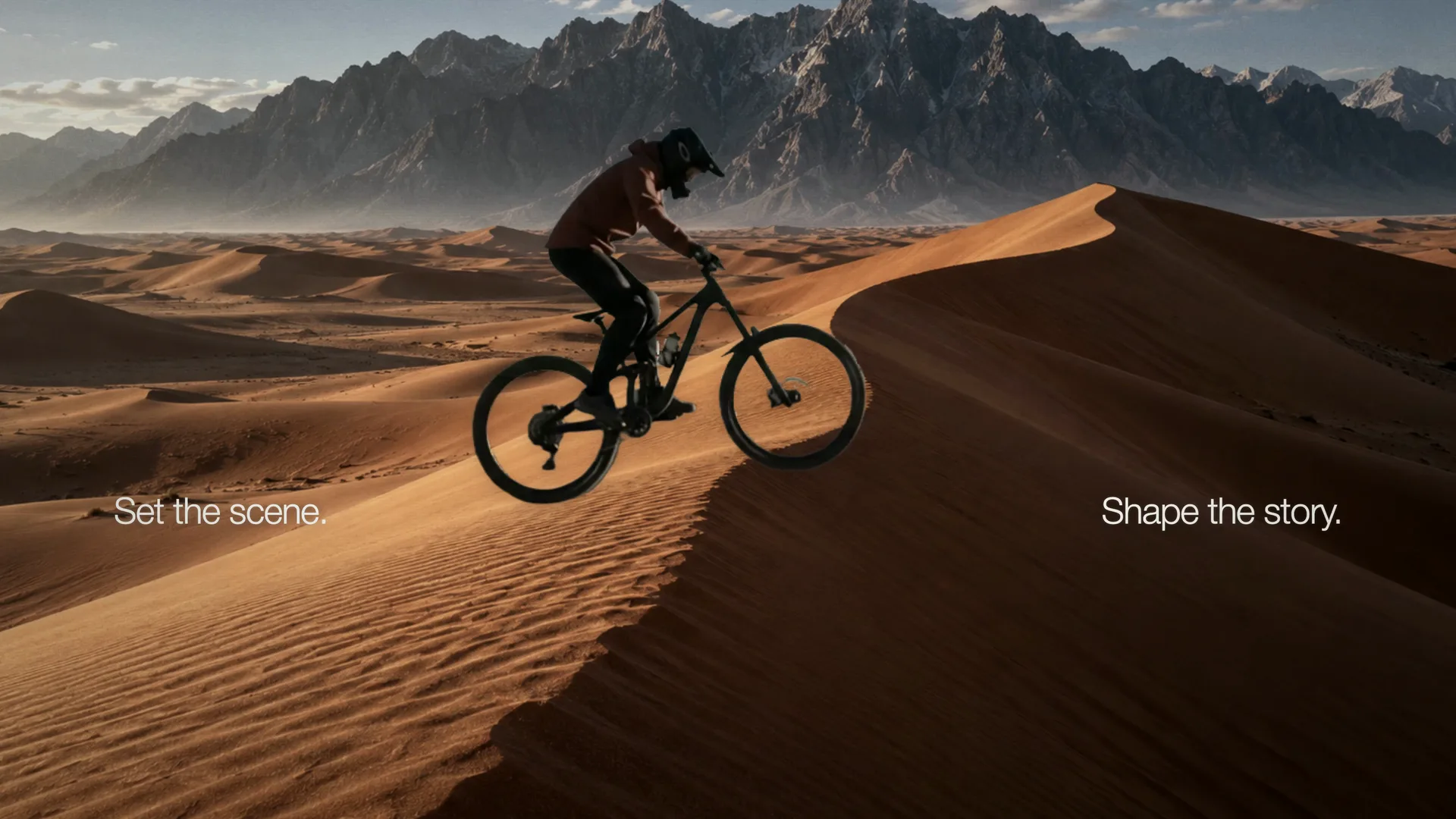
Two more from the lab: Pendulum Text Reveal, where a little bot on a string swings in each new line, and Word Fold, where words walk into place one folding letter at a time.
Get the project
The mockup is in the Rege Lab as a .coamockup file. Open it in CoAnimator, replace the screen recording with yours, and ask your agent to move each shot onto your app's own moments. The camera moves, the blur and the pacing come with it.
Download the mockup.coamockup · 74 MBOpen it in the Rege Lab
Frequently asked questions
Do I need 3D or motion design skills?
No. Mockup Motion ships the 3D devices, the studio lighting, the backdrops and the depth of field. You bring a screen recording or a screenshot and describe the shots to your AI agent.
Can I edit this exact video?
Yes. Download the .coamockup file from the Rege Lab, open it in CoAnimator, swap in your own screen recording and ask your agent to move each shot onto your app's moments.
Can CoAnimator make more than mockups?
Yes. Mockup Motion is one tool inside CoAnimator. The main editor makes full animations, motion graphics and product demos, with text, captions, voice-over, music and video clips on one timeline, in 16:9 or 9:16.
Which aspect ratio should an app launch video use?
16:9 for your site, YouTube and X; 9:16 for Reels, Shorts and TikTok. Make the 16:9 cut first, then save a copy and reframe it for 9:16 so the phone's sides stay inside the tall frame.
What screen recordings work?
Any MP4 or MOV from a phone, the iOS Simulator or a browser capture. Re-fit it to the device's screen ratio first (an iPhone screen is taller than 9:16) and make sure it has square pixels, or it will look stretched inside the phone.